
GroupMe can be installed on a Troomi device once it has been approved through the Parent Portal and the device is properly connected to the internet. The process is simple and typically takes only a few minutes, but approval and SMS verification are required for setup.
Before beginning, ensure the device is connected to Wi-Fi, has sufficient storage space, and has an active phone number capable of receiving text messages. GroupMe uses SMS verification during login.
Approving GroupMe
Start by approving the app in the Troomi Parent Portal.
Log in to the Troomi Parent Portal.
Navigate to the Apps section.
Search for GroupMe.
Select Approve.
Installing the App
Once approved, installation can be completed directly on the device.
Open the Troomi App Store.
Search for GroupMe and select it.
Press Install at the bottom of the screen.
Wait for the download and installation to finish.
If installation does not begin, confirm the device is connected to Wi-Fi and that storage is available.
Setting Up GroupMe
After installing GroupMe, open the app to begin setup. You will be prompted to either Sign In or Create an Account. Follow the appropriate steps below based on the option selected.
Option 1: Sign In (Existing Account)
Select Sign In.
Choose the method used (Google, Email, or Microsoft).
Enter your login credentials.
If prompted, complete phone number verification (see Phone Number Verification section below).
Once signed in and verified, setup is complete and the app is ready to use.
Option 2: Create an Account (New User)
Select Create an Account.
Choose one of the available options: Google, Email, or Microsoft.
If selecting Google, choose the appropriate Gmail account when prompted.
Enter the required information, including name, email, and password.
Add a profile picture if desired.
Choose whether to sync contacts.
Agree to the terms and conditions to continue.
After completing these steps, proceed to phone number verification.
Phone Number Verification
On the verification screen, a Google pop-up may appear that says “Choose a phone number.”
Select the X in the top-right corner of the pop-up. Do not select the number shown in the pop-up, as this may cause verification issues.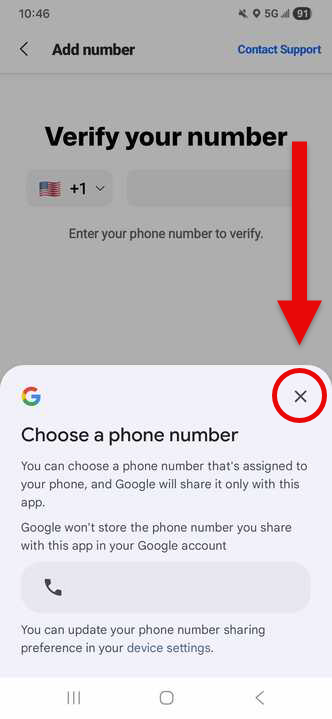
After closing the pop-up:
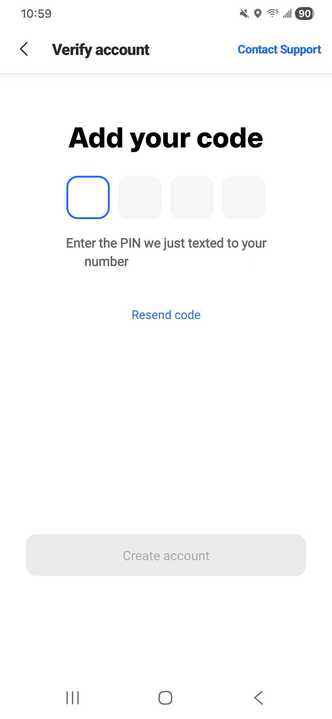
Manually enter the device’s phone number.
Select Send PIN Code.
Before requesting the code, ensure the device can receive messages from non-contacts:
In the Parent Portal, go to Settings > Call Settings.
Turn ON “Can calls and texts be received from non-contacts?”
If this setting is off, the device will not receive the verification code.
Once the code is received, enter it in the app to complete verification. The setting “Can calls and texts be received from non-contacts?” can be turned off after verification if desired.
Final Setup
When prompted with “When’s my bday?”, enter the appropriate date of birth. Continue following the remaining prompts to finish setup.
After completing these steps, GroupMe is ready to use.
Final Steps
On the screen labeled “When’s my bday?”, select the appropriate date of birth. Continue following the prompts to complete setup.
Once these steps are finished, GroupMe is ready to use.
Common Issues
If the app does not appear after approval, verify approval status and restart the device. Sync delays are usually resolved with a restart.
If installation fails, check internet connectivity and available storage.
If verification does not complete, test SMS functionality by sending and receiving a text message before retrying.