
TABLE OF CONTENTS
- Double-check your phone plan
- Double-check setting permissions
- One photo at a time
- Common Cell KB
- Turn on Wifi Calling
- Turn Wi-Fi calling off
- Turn off RCS messaging
- Uninstall/reinstall messages
- Try a different device
- Try a different carrier
- Go to a different area
MMS stands for multimedia messaging service. This service is how photos, videos, and group messages are sent. This article will go over steps to take when you are having issues with sending/receiving MMS messages.
Double-check your phone plan
Not all phone plans have the capability of sending/receiving MMS messages. To see what plan you are on, you will need to open up your parent portal by clicking here. From the home page navigate to the grey person in the top right corner.

Once the grey icon is clicked, you will be taken to your account page. Scroll down until you see “Account Devices.” You will be able to see the phone plan you are currently on. If the plan is the “Do” plan, it does not have MMS capabilities, and you will need to upgrade the plan to “Dream” or “Discover.”

Double-check setting permissions
From the account devices page, click on “Edit Profile.” From here, scroll down until you see a box that says what permissions are allowed and what permissions are not. Make sure “Texting” and “Group and Image Texting” both have a green check mark next to them. If either of those permissions has a red x, the next step would be to allow permissions in the settings tab.
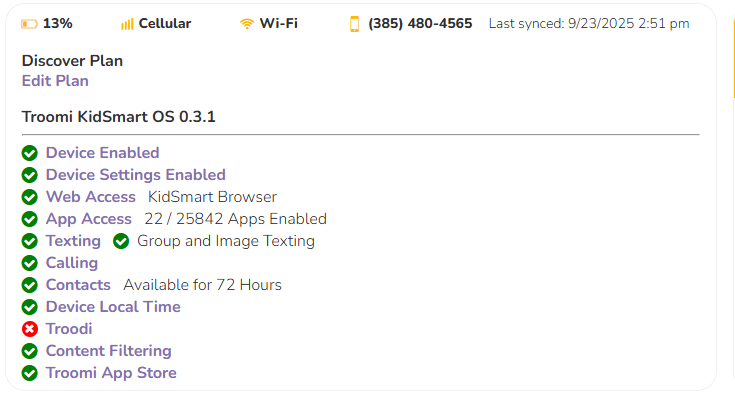
Also double-check if, within the Text Messaging settings in the Parent Portal, the time usages/schedule are not affecting the MMS issue. You may turn them off while troubleshooting to see if those settings are causing MMS issues.
One photo at a time
Troom phones are meant to send/receive one photo at a time. While you can send unlimited photos back and forth, you may see issues when trying to send multiple photos at once.
Common Cell KB
If you have done everything up to this point and are still having issues, the next steps would be to follow this article, Common Cell KB. This article addresses common cellular network issues. Completing this resets the phone network, ensuring that nothing is blocking MMS messages from coming through. This step is crucial in fixing MMS issues.
Turn on Wifi Calling
Turning on Wi-Fi calling often fixes MMS issues. To turn on Wi-Fi calling, you will need the Troomi phone. Once you have the Troomi phone, you will open up settings. From Settings, go to “Connections.” Make sure your phone is connected to wifi and then turn on “Wifi Calling.” If you are having issues turning on Wi-Fi calling, please contact support at (866) 545-4222.
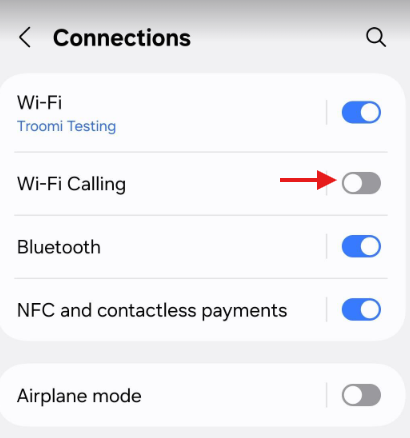
Turn Wi-Fi calling off
If Wi-Fi calling is on, try turning it off. Sometimes home wifi has VPNs, firewalls, etc. that can block photos from reaching the Troomi phone.
Turn off RCS messaging
Troomi phones do not have the capability to send or receive RCS messaging. Sometimes phones that have RCS turned on do not recognize that RCS messaging is not accepted. To fix this, the phone trying to message the Troomi phone must turn off RCS messaging. Below are instructions on how to do that on both iPhones and Androids.
To Turn off RCS on Android,
Open the Google Messages app
Tap your profile picture or the three-dot menu
Select settings
Select RCS chats (or chat features)
“Turn off RCS Chats.”
To turn off RCS on an iPhone with IOS 18 or later,
Go to settings
Apps
Messages
RCS Messaging
Tap the toggle to disable it
Clear the cache/Force stop the app
Here are the steps to clear the cache on the Messages app. This helps remove temporary files, which helps make the app work smoother and faster. To clear the cache for the Messages, you will go within settings on the Troomi phone. Then you follow the path by scrolling down to click on Apps, looking for the Messages app and clicking on it, scrolling down to click on Storage, and clicking on Clear Cache on the bottom of the screen. Once done, open up the app and test to see if MMS will start to work.
You can also force stop the app to immediately shut down the app. This helps if the app is misbehaving by freezing, being unresponsive, or excessively draining the battery. This restart helps with refreshing the app. This may lose unsaved data that is in draft or in the middle of sending or receiving messages. To force stop the app, go to settings on the Troomi device, scroll down to click on Apps, look for the Messages app and click on it, and click on Force Stop at the bottom of the screen. Once done, open up the Messages app and try to see if MMS starts to work again.
Uninstall/reinstall messages
Make sure the Troomi phone is connected to Wi-Fi; the app will not redownload if it is not connected to a secure network.
Long press the Messages and select Uninstall
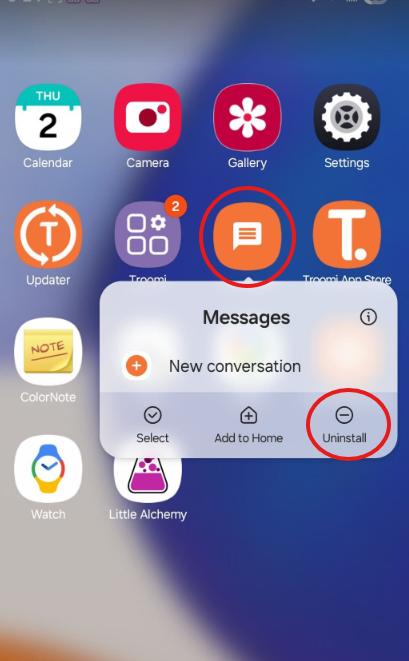
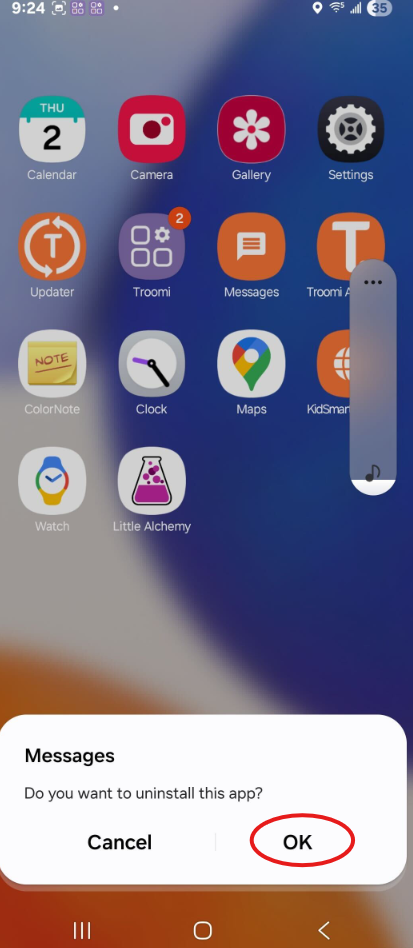
You will get a popup that says, “Do you want to uninstall the app?” Click “Ok.”
Press and hold the power button on the Troomi phone until you get 4 options. Then press “Restart.”
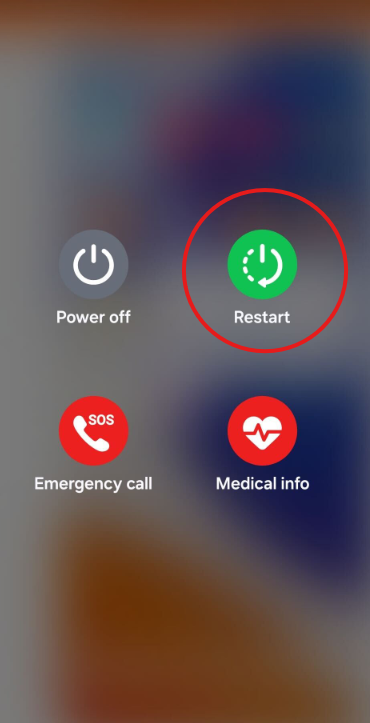
Once the phone has restarted the messages app should have been redownloaded
Try a different device
Trying a different device type can help pinpoint the issue. If you are trying to send a photo from an iPhone, try sending a photo from an Android phone or vice versa. If you are able to send an MMS message from another device to the Troomi phone, please contact support at (866) 545-4222.
Try a different carrier
At Troomi, our carrier is AT&T. Sometimes there may be a network issue between carriers. If possible, having someone message the Troomi phone who is on a different carrier than you will help narrow down any possible issues with carriers. If you find that a line with a different carrier than yours is able to text the Troomi phone, please contact support at (866) 545-4222.
Go to a different area
If your Troomi phone is not able to receive MMS messages in certain areas, it may be due to cell service issues. For example, if your child can send MMS messages at home but at a friend's house they are not able to send MMS messages, this may be due to cell coverage in the area.
If you go through all of these steps and are still having issues, please contact support at (866) 545-4222.